
Return

Hebrew input guide

Set up your Hebrew keyboard

Add Hebrew as a software keyboard on your device. You do not need to replace your physical keyboard or buy Hebrew keycaps.

Instructions reviewed November 10, 2026.

iPhone and iPad

  1. Open Settings → General → Keyboard → Keyboards.
  2. Choose Add New Keyboard, then Hebrew.
  3. While typing, hold the globe key to switch keyboards.
Apple iPhone keyboard guide

Official instructions · reviewed November 10, 2026

Android with Gboard

  1. Open any app where you can type.
  2. Open Gboard settings → Languages → Add keyboard.
  3. Choose Hebrew and the layout you prefer, then switch with the globe key.
Google Gboard language guide

Official instructions · reviewed November 10, 2026

macOS

  1. Open System Settings → Keyboard.
  2. Under Text Input, choose Edit, then add Hebrew.
  3. Use the Input menu or keyboard shortcut to switch input sources.
Apple Mac input-source guide

Official instructions · reviewed November 10, 2026

Windows

  1. Open Settings → Time & language → Language & region.
  2. Add Hebrew, or open Language options and add its keyboard.
  3. Use Windows key + Space to switch layouts.
Microsoft keyboard-layout guide

Official instructions · reviewed November 10, 2026

Chromebook

  1. Open Settings → Languages and inputs → Inputs and keyboards.
  2. Choose Add input methods, then add Hebrew.
  3. Select the language code on the shelf to switch input methods.
Google Chromebook keyboard guide

Official instructions · reviewed November 10, 2026

Keyboard map and keycap reference

This map shows the standard Hebrew letter positions on a QWERTY keyboard. It is a reference—not a separate keyboard to install.
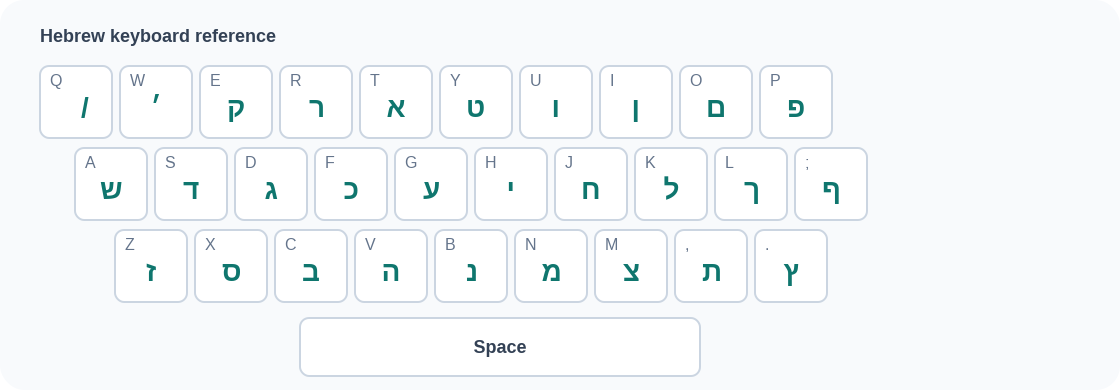
Standard Hebrew letters mapped to QWERTY keys

Try typing Hebrew

Switch to your new Hebrew keyboard and type a few words. Nothing entered here is saved.

Was this guide helpful?

A quick response helps us keep these instructions useful.